 Alok Singh
The Modern Shift to Google Workspace:
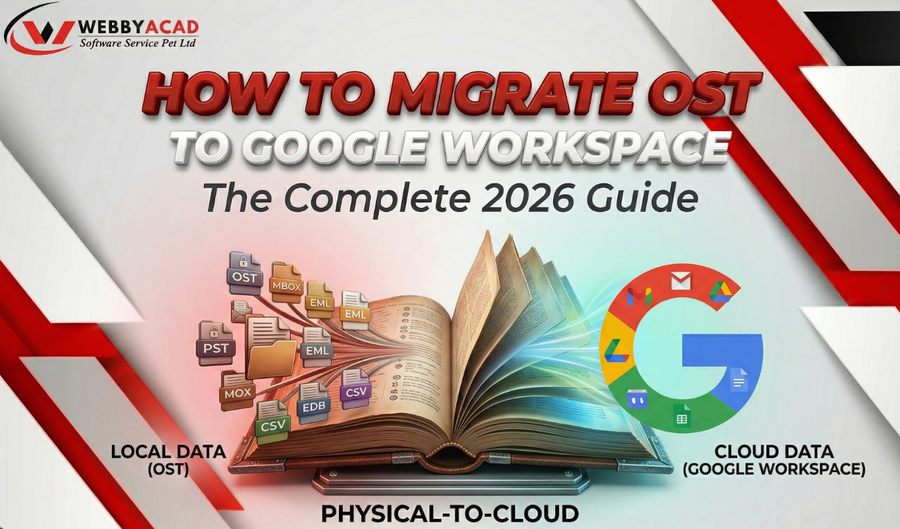
With hybrid work and cloud-first techniques becoming more popular, it’s clearer than ever how limited offline storage is. If your company is moving from an old Exchange configuration or a standalone Outlook arrangement, you may have come across the OST (Offline Storage Table) file.
OST files are great for getting work done while you’re not connected to the internet, but they are quite easy to break. Because they are linked to a specific MAPI profile, you can’t just open them on another machine or post them straight to the web. You need a bridge to move OST email to Google Workspace.
This post shows you exactly how to move OST files to Gmail & Google Workspace quickly and easily, whether you are an IT administrator or a company owner.
Getting to Know OST to Google Workspace Challenge
It’s important to know why this isn’t just a “copy-paste” task before you start working on the answer.
- Cloud Incompatibility: The way Google Workspace is built is different from the way Microsoft stores data on its own servers.
- Risks to Data Integrity: When you export data by hand, you typically lose metadata like dates, BCC fields, and folder hierarchies.
- Profile Dependency: OST files are encrypted so that only the Outlook profile that generated them may use them.
We will look at the two best ways to do this right now: The Native Google Tool & Professional Email Migration Software Method.
Method 1: The Native Solution (Google Workspace Migration for Microsoft Outlook)
GSMMO is a free tool that Google offers. This is the usual “manual” route for those who still retain access to their original Outlook profile.
The Step-by-Step Execution:
- Before you start, make sure that Microsoft Outlook is installed on the computer where the OST is stored.
- To get GSMMO, go to the Google Workspace admin help site and get the GSMMO (Google Workspace Migration for Microsoft Outlook) utility.
- Authentication: Open the program and log in using the Google Workspace (Gmail) account you want to send to.
- Choosing the Source: The program will ask you where the data came from. If you’ve already used Outlook’s Export wizard to change the OST to PST, choose “From Microsoft Outlook User Profile” or “From PST File.”
- Filter and Migrate: Pick whether you want to move Emails, Contacts, or Calendar events. Click “Migrate” and give it some time to finish.
This approach is “free,” but it takes a lot of time. It needs a solid internet connection and a healthy, clean Outlook environment. If your OST is “orphaned,” which means the original account is no longer there, this approach won’t work.
Method 2: The Exact Professional Solution (Using an OST to Google Workspace Converter)
If you have orphaned ost files, a lot of files to move, or damaged data, the only safe way to convert OST files to Google Workspace is with a best tool. Professionals like this solution best because it doesn’t rely on Microsoft Outlook at all.
Step 1: Choosing the Right Tool
Direct IMAP/API Migration must be supported by a good converter. This lets the applications send data straight to the Google Cloud without having to convert files first.
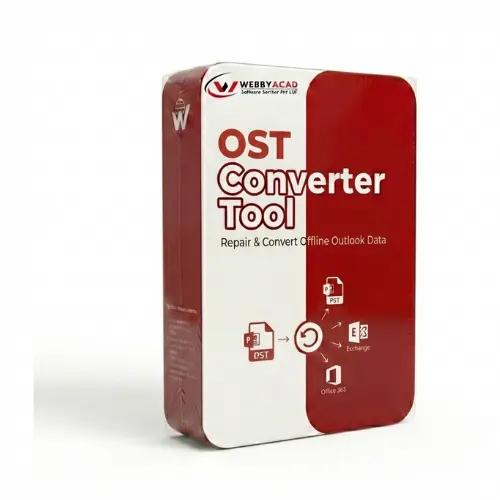
OST Converter Tool
The ultimate solution for seamless OST files to Cloud migration. Convert your data with 100% accuracy.
- Instant Cloud Migration
- Supports Office 365
- Google Workspace Ready
- 100% Secure & Reliable
Step 2: Scanning the OST and fixing it
Open your converter software and add the OST file. A “Deep Scan” will be done using a professional instrument. This is very important since it gets back “hard-deleted” objects and fixes any header corruption that may stop the migration in the middle.
Step 3: Look over and filter
Check your folder hierarchy in the preview box before the final transfer. In 2026, data privacy is very important. To save money on Google Cloud storage, just move company data that is relevant (like the previous three years).
Step 4: Linking to Google Workspace
Type in the login information for your Google Workspace account. If you are an admin doing a mass transfer, utilise the Service Account functionality to link many OST files to their Google user IDs, such as user1@company.com.
Step 5: The Last Move
Press the button that says “Convert/Export.” The tool will start the process of uploading things. The finest programs keep a log in real time that shows you which emails are being migrated and lets you know if any attachments are bigger than Google’s 25MB limit.
Important Tips for Files Migrations in 2026
Keep these expert suggestions in mind to make sure your email move to Google Workspace goes smoothly:
1 Keep an eye on the Google Control Limits
There are “upload limits” for Google Workspace, which are usually about 30GB per day per user.
If you’re moving a huge 50GB OST file, a professional converter will automatically handle this controlling, but doing it by yourself might cause your computer to crash.
2. Manage folders vs. labels
Instead of folders, Gmail utilises Labels. When you move an OST file to Gmail, be sure your tool can appropriately map folders to labels so that your organization stays the same.
3. Cleaning up after the move
After the migration is done, look for “Conflicts.”
Sometimes, old Outlook rules might make Gmail show the same email twice in the “All Mail” category. A short deduplication script may free up gigabytes of space.
Why settle for local when you can have the cloud?
Moving from OST to Google Workspace is more than simply moving files; it’s an improvement to the way your organization works.
The manual GSMMO tool may handle minor jobs, but a best OST to Google Workspace converter is the “exact solution” for anyone who cares about data security because it is faster and more reliable.
You can be sure that your business intelligence is searchable, safe, and available from anywhere in the world by migrating your data to the cloud.