 Alok Singh
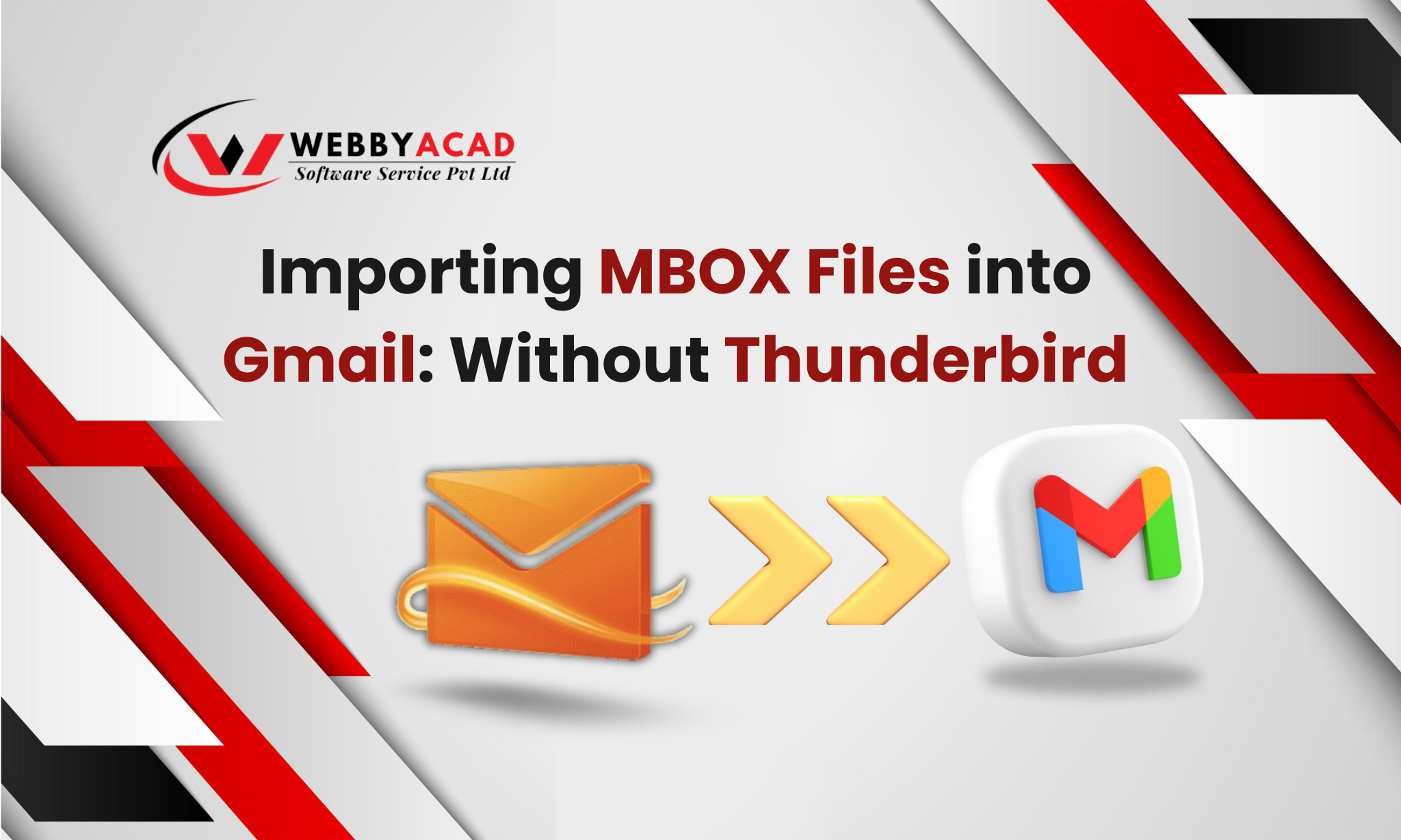
Let’s be honest: setting up Thunderbird just to move a few MBOX files into Gmail is a massive chore. It’s slow, it crashes with large files, and half the time, your folder structure ends up looking like a mess.
If you’re looking for a way to bypass the “middleman” and get your emails into Google Workspace or personal Gmail directly, you’re in the right place. Here is the most efficient way to handle MBOX migration without the technical headache.
The Problem: Why “The Old Way” Fails
Most guides tell you to install Thunderbird, add an add-on, and drag-and-drop. Here is why that’s a bad idea in 2026:
- The 10GB Wall: Thunderbird often chokes if your MBOX file is large.
- Missing Attachments: Drag-and-drop frequently “drops” your actual files.
- Security: Syncing your entire cloud account to a local desktop app opens up privacy risks.
Method 1: The “Direct Upload” Way (Using WebbyAcad)
The smartest way to do this is to use a dedicated tool like the WebbyAcad MBOX Converter. It skips the installation of any email client and talks directly to Gmail’s servers.
Why people love it:
- Zero Installation: You don’t need Thunderbird, Outlook, or anything else.
- Bulletproof Metadata: Your “Sent” dates, CC/BCC, and folder names stay exactly as they are.
- Bulk Magic: Have 50 MBOX files from different sources? Upload them all at once.
- Selective Migration: Don’t want 5 years of spam? Use the date filter to only move what you need.
How to do it (Simplified):
- Load: Browse and select your MBOX files in the WebbyAcad dashboard.
- Preview: Double-check your emails and attachments (it’s always good to be sure).
- Authenticate: Securely sign in to your Gmail account.
- Import: Hit ‘Convert’ and watch your emails appear in Gmail in real-time.
Use WebbyAcad MBOX Converter Free : See your emails in Gmail in minutes
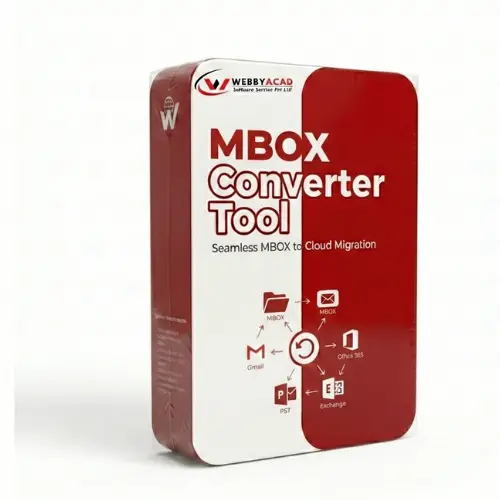
MBOX Converter Tool
Converts MBOX files and moves emails between email providers. Supports iCloud, Gmail Workspace Convert your data with 100% accuracy.
- Instant Cloud Migration
- Supports Office 365
- Google Workspace Ready
- 100% Secure & Reliable
Method 2: The Google Takeout / Import Route (The “Slow” Way)
Gmail has a native import tool, but there’s a catch:
It doesn’t accept .mbox files directly.
It only works if you are migrating from another live email account (like Yahoo or Hotmail). If you only have an offline MBOX file (from a backup or an old employee), this method will not work.
The Verdict: Is there a “Free” way?
Technically, you can use the Thunderbird” ImportExportTools NG ” add-on, but if your data is important, the risk of a “timed-out” connection or corrupted headers is high.
For professional results where every attachment and timestamp matters, WebbyAcad is the industry standard for a reason. It turns a 2-hour manual job into a 5-minute automated one.
A: If you use the manual drag-and-drop method, yes, it happens often. With WebbyAcad, your entire folder tree is mapped perfectly into Gmail labels.
A: Absolutely. The tool uses Google’s secure OAuth/App Password system. We never see or store your credentials.
A: It doesn’t matter. Whether it’s from Mac, Linux, or a Google archive, the software reads it perfectly.