 Alok Singh
Whether it was an accidental “Shift + Delete” or a sudden drive error, the good news is that recover deleted files is more reliable than ever in 2026.
How to Recover Files on Windows
To recover deleted files on Windows in 2026:
- Immediate Action: Stop using the drive to avoid overwriting data.
- Check Backups: Verify the Recycle Bin, OneDrive, or File History.
- Use Professional Software: Launch a tool like WebbyAcad Data Recovery for deep scanning.
- Scan & Filter: Run a “Deep Scan” and filter by file type (Photos, Videos, or Documents).
- Restore: Preview the files and save them to a different storage device to ensure 100% integrity.
While we previously discussed the high-stakes world of Data Recovery for Small Businesses, this guide focuses on the individual user, student, and creative professional who needs to perform hard drive recovery quickly and safely.
Why “Deleted” Doesn’t Mean “Gone”
When you remove a file on a Windows computer, the data stays on the sectors of your drive. The operating system just identifies the space as “empty” and ready to be written over. This is why specialized Windows data recovery tools are so effective—they look past the file directory and scan the physical storage for the actual data bits.
Important Note: To maximize your chances, stop using the affected drive immediately. If you continue to download files or browse the web, you risk overwriting the very data you are trying to save.
Specialized Recovery: Photos, Videos, and Documents
Depending on what you lost, you may need to look for specific features in your data recovery software:
1. Photo Recovery for Photographers and Families
Photos are often stored in formats like JPEG, PNG, or RAW. A high-quality recovery tool can reconstruct these files even if the file header is damaged. This is essential for recovering memories from SD cards used in digital cameras or smartphones.
2. Video Recovery for Content Creators
Video files (MP4, MOV, AVI) are much larger and often “fragmented” across a hard drive. Standard tools might recover a video that won’t play. For smooth footage, advanced recovery algorithms “stitch” these sections back together.
3. Document Recovery for Students and Professionals
Losing a thesis or a financial spreadsheet can be devastating. Modern tools allow for a document recovery preview, letting you see the text of a Word doc or PDF before you proceed with the full restoration.
How to Perform Hard Drive Recovery at Home
You don’t need to be an IT expert to get your files back. Follow these simple steps:
- Select Your Target: if the data were lost from your C: disk, external HDD, or USB flash drive.
- Run a Professional Scan: Use a trusted tool like the WebbyAcad Data Recovery Software. Start with a “Quick Scan” for recently deleted items. Use the “Deep Scan” mode if your disk was formatted.
- Filter by File Type: To save time, filter results by extension (e.g., .jpg for photo recovery or .docx for documents).
- Preview and Save: Always preview the file to ensure it isn’t corrupted. Save the recovered data to a different drive to ensure safety.
Finding the Best “Free Data Recovery” Solutions
Before using any other tools, it is always wise to check the official Windows recovery options provided by Microsoft to see if a system restore point is available.
Many users start their journey by looking for free data recovery options. While some free tools exist, they often have strict limits—such as a 500MB recovery cap or an inability to recognize modern SSD partitions. For those dealing with large video libraries or entire hard drive failures, investing in a professional-grade license is often the only way to ensure 100% data integrity.
Beyond the Desktop: External and Partition Recovery
Sometimes, the problem isn’t just a deleted file; it’s a “Drive Not Recognized” error. This usually indicates a corrupted partition. High-end software can rebuild these partition tables, making the entire drive accessible again without losing a single byte of data.
While we recommend professional solutions for critical data, you can compare different tools by looking at the latest best data recovery software reviews to see how various algorithms perform.
Prevention: The Best Recovery is a Backup
While tools like WebbyAcad data recovery suite are highly effective, the ultimate goal is to never need them.
- Enable File History: Windows has a built-in “File History” feature that automatically backs up versions of your files.
- Cloud Integration: Use OneDrive or Google Drive for your most “active” documents.
- Regular Health Checks: Use software to monitor the S.M.A.R.T. status of your hard drive to catch hardware failures before they happen.
Conclusion
Data loss is a technical hurdle, not a permanent disaster. By understanding how Windows data recovery works and acting quickly, you can restore everything from a single deleted photo to a complex video project.
Ready to get your files back? Explore our Data Recovery Software and start your free scan today.
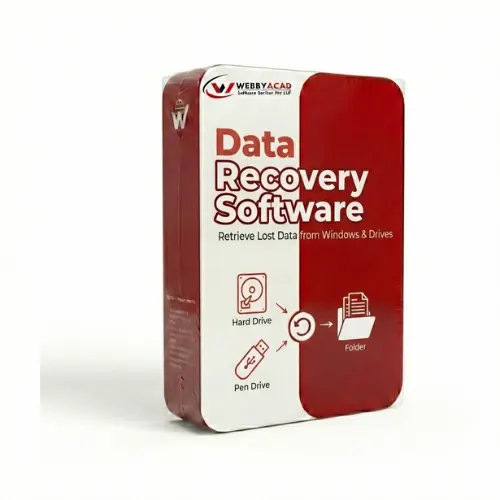
Data Recovery Software
Recover Lost Data from Any Storage Device. Recover your data with 99.9% accuracy.
- Deleted File Recovery
- Formatted Drive Recovery
- Photo & Video Recovery
- 100% Secure & Reliable