 Alok Singh
Introduction
Switching from the Microsoft ecosystem to Zimbra is a strategic move for many organizations seeking better privacy, lower licensing costs, and a lightweight email client.
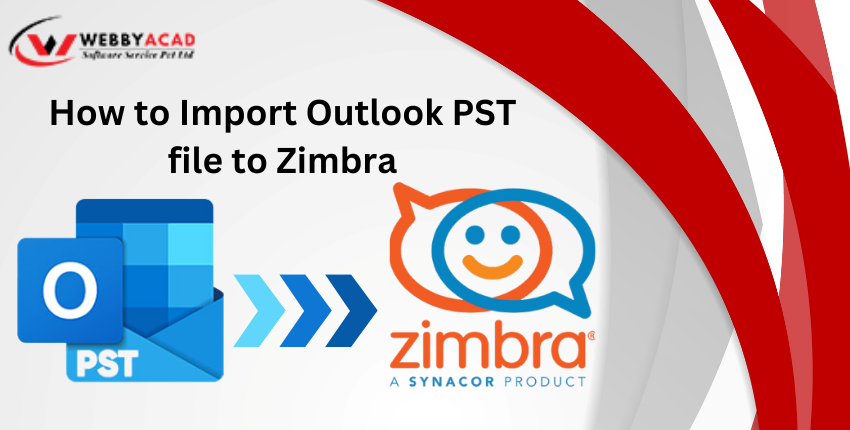
However, a major hurdle remains: Outlook uses the proprietary .PST format, while Zimbra requires .TGZ.
If you have years of critical emails, attachments, and folder structures, a “manual” copy-paste simply won’t work. In this guide, we’ll walk you through the most efficient way to migrate your data while maintaining 100% data integrity.
Why Migrate from Outlook to Zimbra?
Digital leaders are increasingly moving to Zimbra for three primary reasons:
- Cost-Efficiency: Significant savings on enterprise subscriptions compared to Microsoft 365.
- Privacy & Ownership: Full control over your data without being locked into a proprietary cloud.
- Performance: Zimbra Desktop handles massive archives (20GB+) with much lower RAM usage than Outlook.
Pre-Migration Checklist (Don’t Skip This!)
Before starting the conversion, ensure these three steps are completed to prevent file corruption:
- Backup Your PST: Create a secondary copy of your Outlook Data File (.pst) on an external drive.
- Repair PST Errors: Use the Inbox Repair Tool (ScanPST.exe) to fix any existing internal database errors.
- Close Outlook: Ensure Microsoft Outlook is completely shut down via Task Manager so the file isn’t “in use.”
The Expert Method: How to Import PST to Zimbra via TGZ
Since Zimbra cannot read PST files natively, the most reliable method is converting them into a TGZ file, which is Zimbra’s native import format.
Step 1: Convert PST to Zimbra TGZ
Using a professional tool like the WebbyAcad PST Converter Tool is the only way to ensure metadata (CC, BCC, Timestamps) and folder hierarchies remain intact.
- Add Files/Data:
Open the software and add your PST files. You can load an entire folder of PST at once instead of processing them one by one if you’re transferring an entire office. - Preview Files:
The preview window is one of the best features of this. You can browse through your emails and folders to ensure everything, including those pesky attachments, appears correctly before you approve the conversion. - Choose the Destination Format:
Choose Zimbra as the format for your export. This is the most important step that converts the messy PST into a clean TGZ file that Zimbra can read. Choose a folder on your desktop that you can quickly find the finished product in. - The Last Step (Export):
Click Convert. The software automatically maps your folders (Inbox to Inbox, Sent to Sent), so when you open the files in Zimbra, everything is exactly where you left it.

PST Converter Tool
The ultimate solution for seamless pst files to Cloud migration. Convert your data with 100% accuracy.
- Instant Cloud Migration
- Supports Office 365
- Google Workspace Ready
- 100% Secure & Reliable
Step 2: Import the TGZ File into Zimbra
- Once you have your .TGZ file, follow these steps within the Zimbra client:
- Open Zimbra Desktop or the Web Client.
- Go to the Preferences tab.
- Click on Import/Export in the left-hand sidebar.
- Under the Import section, click Choose File and select the TGZ file you created.
- Click Import. Your Outlook folders will now appear exactly as they were in Zimbra.
Key Benefits of Using the WebbyAcad Software
Manual IMAP migrations are slow and often fail during large transfers. Our automated approach offers:
- Zero Data Loss: Maintains all email headers, formatting, and embedded images.
- Folder Mapping: Automatically maps “Sent Items” to “Sent” and “Deleted Items” to “Trash.”
- Massive Archive Support: Easily handles files larger than 50GB without crashing.
- Attachment Preservation: Ensures PDF, Excel, and Word attachments remain linked to their original emails.
Conclusion
It shouldn’t feel like a risk to migrate. Your most significant asset is your previous data, whether you’re relocating for more security or simply to reduce monthly overhead.
FAQs
Zimbra does not natively support the PST format. You must first convert PST files to the Zimbra-compatible TGZ format using a professional migration tool.
Yes, the WebbyAcad PST Converter ensures that all email folders, subfolders, attachments, and metadata remain intact during the migration.