 Alok Singh
If you work full-time, your email is more than just a way to talk to people; it is also a living record of all the business information you have. That archive, on the other hand, has a limit.
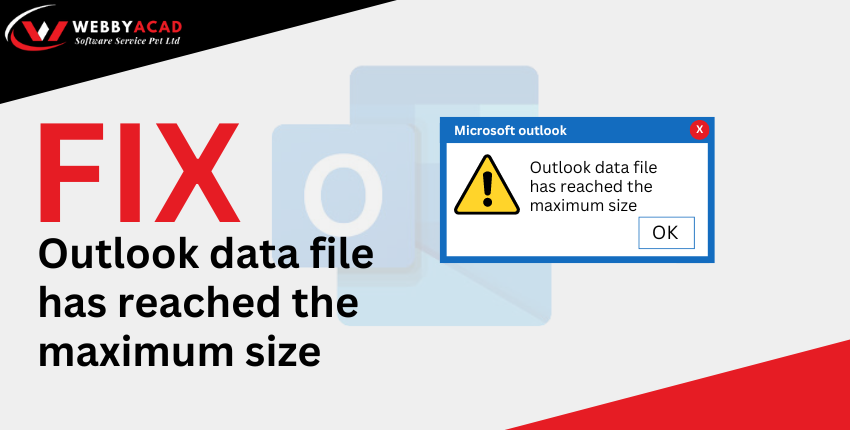
You try to submit an important proposal or download a new attachment one morning, but Outlook gives you the dreaded error message: “The Outlook data file has reached the maximum size.”
Right now, you can’t get anything done. You can’t get fresh leads, you can’t respond to clients, and the worst part is that your whole database is quite likely to become corrupted.
In this in-depth article, we’ll look at why this happens and provide you with 5 professional-level ways to fix the problem while keeping your data safe.
Understanding the “Invisible Limit” of Outlook
The default size limit for PST and OST files in the most recent versions of Outlook (2016, 2019, 2021, and Microsoft 365) is 50 GB.
50 GB may seem like a lot, but it can fill up faster than you think with high-resolution attachments, embedded photographs, and extended threads over the course of a few years.
The file is “read-only” after you reach this limit. It can’t become any bigger to hold more info.
If you try to force it, the PST’s structure can break down, which will cause you to lose data forever.
Solution 1: The “Low-Hanging Fruit” (Cleanup)
The first step is to remove the “unnecessary” that you don’t actually need.
Empty the Trash and Junk: Items that have been deleted are not really gone; they are only moved
to a different folder in the same big file. Click on Deleted Items and then choose Empty Folder.
Sort by Size: To sort by size, open your inbox, click on “Filter” or “Sort,” and then choose “Size.” This will put the biggest emails at the front. (usually those with massive PowerPoint or Video attachments)
Solution 2: Use the “Compact Now” Feature
A lot of people don’t know that deleting an email doesn’t really make the file size on your disk smaller.
It just makes “white space” inside the file. You have to compact the .pst file to make it smaller.
- Go to File > Account Settings. Click on the Data Files tab.
- Select the file that has reached its limit and then click Settings.
- Click Advanced, and then click Outlook Data File Settings. Click “Compact Now.”
Note: This process can take a long time for a 50GB file. Do not shut off your computer while this is running.
Solution 3: Learn How to Archive
You need to relocate your emails out of your main data file if you can’t erase them because of rules or record-keeping.
- Manual Archive: Create a new PST file (e.g., “Archive_2023.pst”) and manually drag old folders into it.
- Auto-Archive: Go to File > Options > Advanced > AutoArchive Settings. You can set Outlook to automatically move items older than 6 months into a separate archive file. This keeps your “Active” PST file lean and fast, while your history remains searchable in a secondary file.
Solution 4: The “Registry Trick” (For Faster Space)
If clearing your folders doesn’t help, there’s a “secret” technique to instruct Outlook to boost its storage limit. By default, Outlook limits files to 50GB. However, you may manually boost that ceiling to 100GB or more via the Windows “brain” (Registry).
Note: This move is powerful. Outlook can slow down and fail if a PST file is larger than 50GB. Use this just if you need everything in one location.
How to do it:
- Open Registry: Press Windows Key + R, type regedit, and press Enter.
- Find Outlook Folder: Browse HKEY_CURRENT_USER > Software > Microsoft > Office > 16.0 (your version may differ) > Outlook > PST in the sidebar.
Create Two Rules: Right-click the right-side empty area and create two DWORD (32-bit) Values:
- Name the first: Max Large File Size
- Name the second: Warn Large File Size
- Set Your New Limit: Double-click MaxLargeFileSize, select “Decimal,” and enter a higher megabyte figure. Enter 102400 for 100GB.
- Set the Warning: Set WarnLargeFileSize to 95000 so Outlook may notify you before you reach the new limit.
Outlook should recognize the new “extra large” restriction and remove that obnoxious error notice after starting.
Solution 5: The Professional Way (Splitting Oversized Files)
Outlook often becomes too unstable to use the “Compact” or “Archive” features properly when a file is really full. In these situations, your database needs to be “surgically” fixed from the outside.
This is when the WebbyAcad PST Converter becomes an important tool for you. You can process the file outside of Outlook instead of dealing with a freezing interface:
- Split by Size: You may take a huge 50GB file and break it into ten 5GB pieces. This makes it easy to keep track of them, speeds up searches, and greatly lowers the chance of corruption.
- Split by Year: This will automatically put your data into yearly pieces, like 2021, 2022, and 2023.
- Recover & Repair: If your file is already giving you “CRC Errors” or “The file cannot be accessed,” our tool can fix the structure and get your data into a new, healthy file.
Conclusion: Proactive Management is Important
If you reach the maximum size limit, it’s time to improve your data management plan. Cleaning by hand and using registry hacks are only temporary remedies. The best long-term answer is to keep your main mailbox small and your archives in order.
Don’t wait for your Outlook to fail and lose years of emails. Get control of your data right now.

PST Converter Tool
The ultimate solution for seamless pst files to Cloud migration. Convert your data with 100% accuracy.
- Instant Cloud Migration
- Supports Office 365
- Google Workspace Ready
- 100% Secure & Reliable
Having trouble with a file that won’t open? Get the WebbyAcad PST converter tool and split your big PST files in only a few minutes.