 Alok Singh
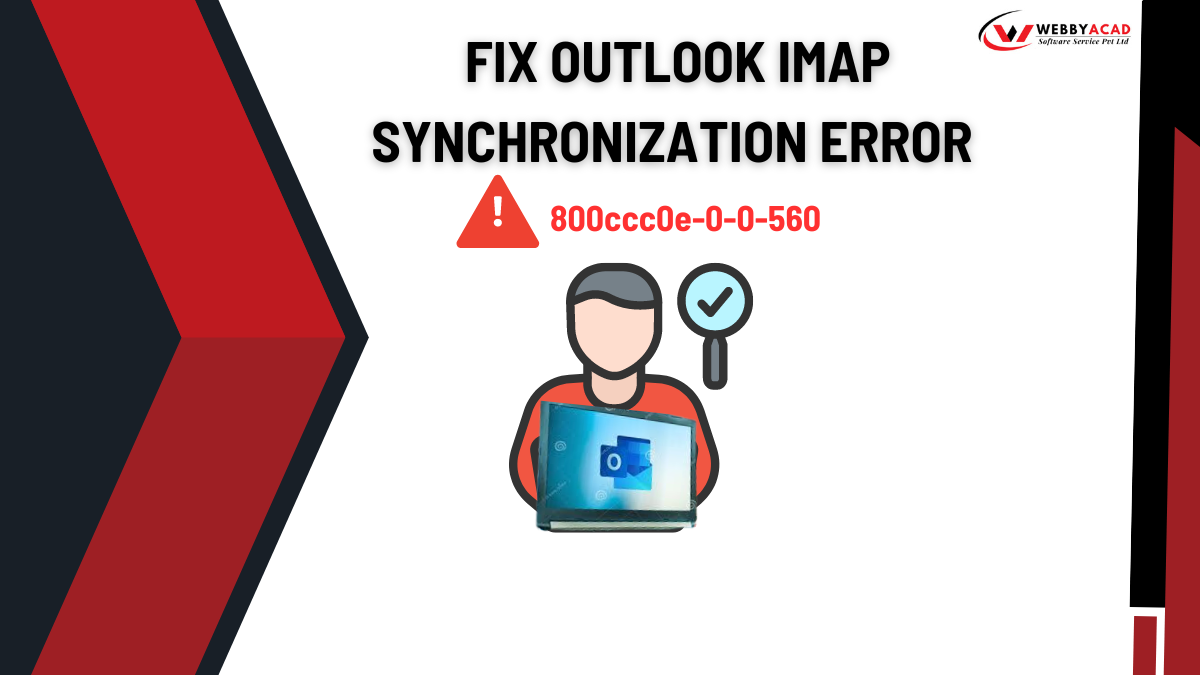
If you are seeing the error code 800ccc0e-0-0-560 in Microsoft Outlook, your emails are likely stuck in a synchronization loop. This error typically occurs when Outlook fails to communicate with your IMAP mail server, preventing you from sending or receiving new messages.
In this guide, we’ll break down why this happens and provide proven manual and professional solutions to get your inbox back on track.
Why am I seeing Error 800ccc0e-0-0-560?
Several factors can contribute to Outlook error 800ccc0e-0-0-560, a common issue during IMAP synchronization. Here are the key factors:
- Incorrect Account Settings: Wrong IMAP/SMTP port numbers or server names.
- Network Issues: An unstable internet connection or a firewall blocking the port.
- Corrupted OST File: The local cache file of your emails has become unreadable.
- SSL/TLS Conflicts: A mismatch between your security settings and what the server requires.
- Root Folder Path Errors: Outlook is looking for folders in the wrong directory on the server.
Quick Checklist (Try these first!)
- Check Internet Stability: Ensure you aren’t on a restricted public Wi-Fi.
- Disable Antivirus/Firewall: Temporarily turn them off to see if they are blocking Outlook’s connection.
- Delete Suspicious Emails: Large or corrupted emails in your Outbox can sometimes “clog” the sync process.
“Having persistent Outlook errors? Sometimes a corrupt OST is the cause. Use our OST to PST converter to secure your data.”
Method 1: Change the Root Folder Path (Most Common Fix)
Often, Outlook fails to sync because it doesn’t know where the primary “Inbox” is located on the IMAP server.
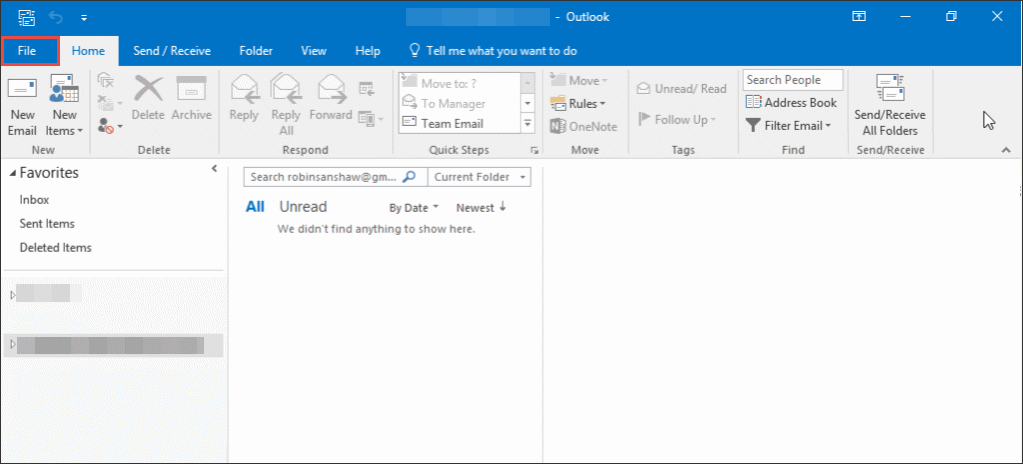
- Open Outlook and go to the File menu.
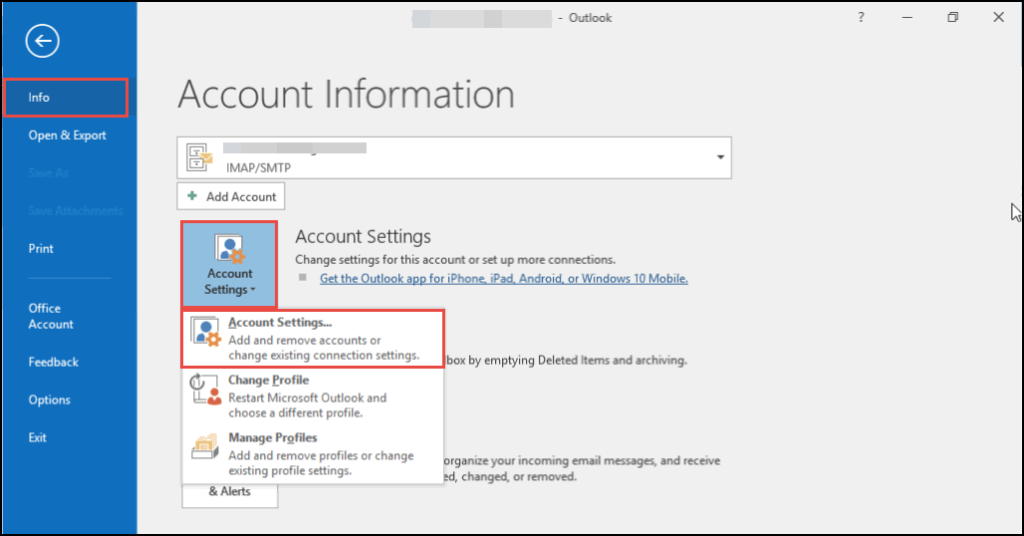
- Click Account Settings > Account Settings.
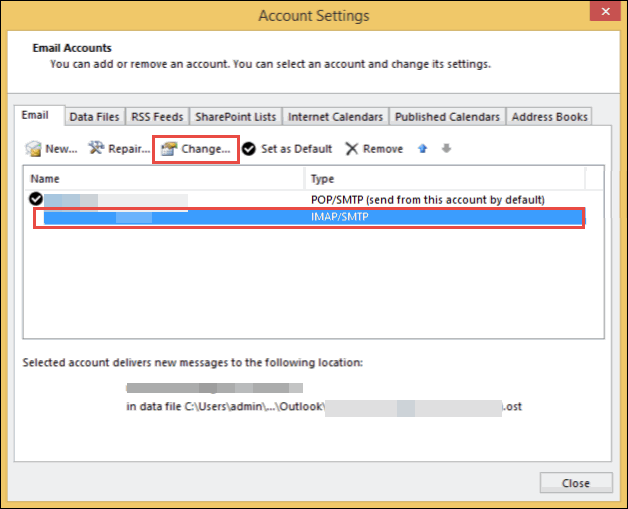
- Select your IMAP email account and click Change.
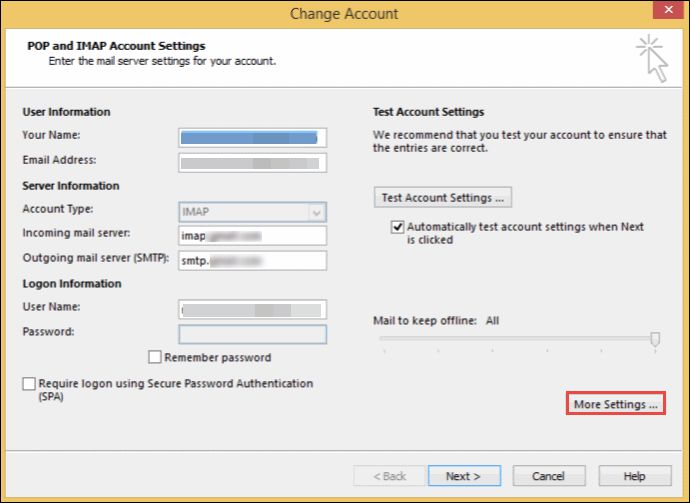
- Click on More Settings (bottom right).
- Navigate to the Advanced tab.
- Under the “Folders” section, find the Root folder path box
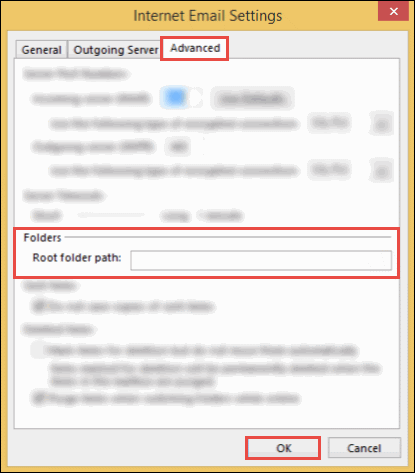
- Type Inbox (all lowercase or capitalized, depending on your provider).
- Click OK, then Next, and Finish. Restart Outlook.
Also Read This Guide and Fix Outlook Error 0x8004011d
Method 2: Repair/Regenerate your Outlook Data File (.OST)
If the local copy of your mailbox is corrupted, Outlook will struggle to sync. Deleting the .ost file forces Outlook to download a fresh, clean copy from the server.
- Close Outlook completely.
- Press Windows Key + R, type %localappdata%\Microsoft\Outlook, and hit Enter.
- Find the file ending in .ost associated with your email address.
- Right-click and select Rename (e.g., add .old to the end) or Delete it.
- Open Outlook. It will say “Preparing a local copy”, let it finish syncing.
Note: Don’t worry, your data is safe on the server; Outlook will recreate this file when you reopen it.
Method 3: Verify Port Numbers and SSL Settings
Standard IMAP settings are specific. If these are wrong, the server will reject the connection.
- Go to File > Account Settings > Account Settings.
- Select your account and click Change > More Settings > Advanced.
- Ensure your settings match these industry standards:
- IMAP Port: 993 (Encryption: SSL/TLS
- SMTP Port: 465 or 587 (Encryption: SSL/TLS or STARTTLS)
- Click OK and test the account settings.
Professional Solution: WebbyAcad PST Recovery Tool
If manual methods fail, the underlying issue might be deep-seated corruption within the Outlook database that simple file deletion cannot fix.
The WebbyAcad PST Recovery Tool is designed to:
- Repair Corrupted Files: Fixes damaged PST/OST files that cause sync errors.
- Automated Diagnostics: Quickly identifies why the 800ccc0e error persists.
- Data Integrity: Recovers emails, attachments, and contacts without data loss.
- Universal Compatibility: Works with all versions of Outlook (2021, 2019, 2016, and older).
PST Converter Tool
The ultimate solution for seamless pst/ost files to Cloud migration. Convert your data with 100% accuracy.
- Instant Cloud Migration
- Supports Office 365
- Google Workspace Ready
- 100% Secure & Reliable
Using a professional tool saves hours of troubleshooting and ensures your email configuration is optimized for the latest server security protocols.
Conclusion
The Outlook IMAP error 800ccc0e-0-0-560 is frustrating but usually fixable by adjusting the Root Folder Path or regenerating the OST file. If you’ve tried the manual steps and still can’t sync, a reliable OST to PST converter is your best bet to restore your workflow.
Need more help? Contact our support team or check out our other guides on Outlook database management!