
 admin
adminAre you looking to migrate from Zimbra to Google Workspace without losing your folders, attachments, or metadata? Moving your business data is a critical task, and a single mistake can lead to permanent data loss.
In this guide, we provide the most reliable methods to export Zimbra TGZ files to Gmail—whether you want a free manual workaround or a professional automated solution.
How do I import Zimbra TGZ to Gmail?
Since Gmail does not natively support
.tgzfiles, the most efficient method is using the WebbyAcad Zimbra Converter. This tool extracts data from Zimbra TGZ files and uploads them directly to Gmail/Google Workspace while maintaining folder hierarchy and email integrity.
Why Migrate from Zimbra to Google Workspace?
Method 1: Professional Migration (Recommended for Data Integrity)
The safest way to export Zimbra files into Gmail is using a dedicated utility. The WebbyAcad Zimbra Mailbox Converter is specifically designed to handle large .tgz archives that manual methods often fail to process.
Key Features for High Conversion:
- Direct Migration: No need to extract TGZ files manually; the tool handles it.
- Maintains Metadata: Keeps ‘To,’ ‘Cc,’ ‘Bcc,’ ‘Date,’ and ‘Subject’ intact.
- Batch Processing: Migrate multiple Zimbra user accounts to Google Workspace simultaneously.
- Filter Options: Select specific date ranges or folders to save storage space in Gmail.
Step-by-Step: Export Zimbra to Gmail
- Download & Install: After download, install Zimbra converter tool 1.7.0 on a Windows PC/laptop.
- Add Zimbra Files: Launch the software and add the Zimbra .tgz files you want to migrate.
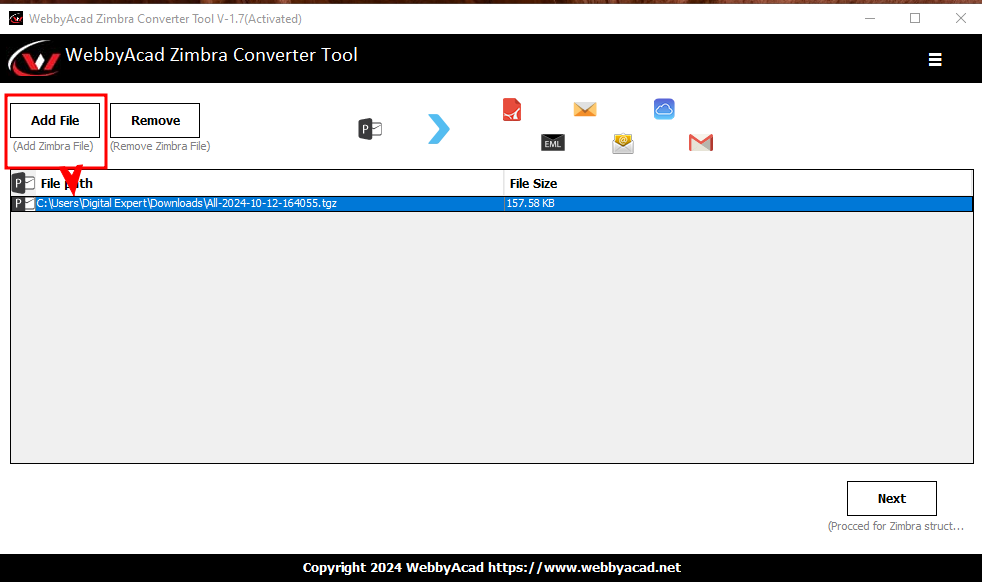
- Select Gmail as Destination: Choose Gmail as the destination account.
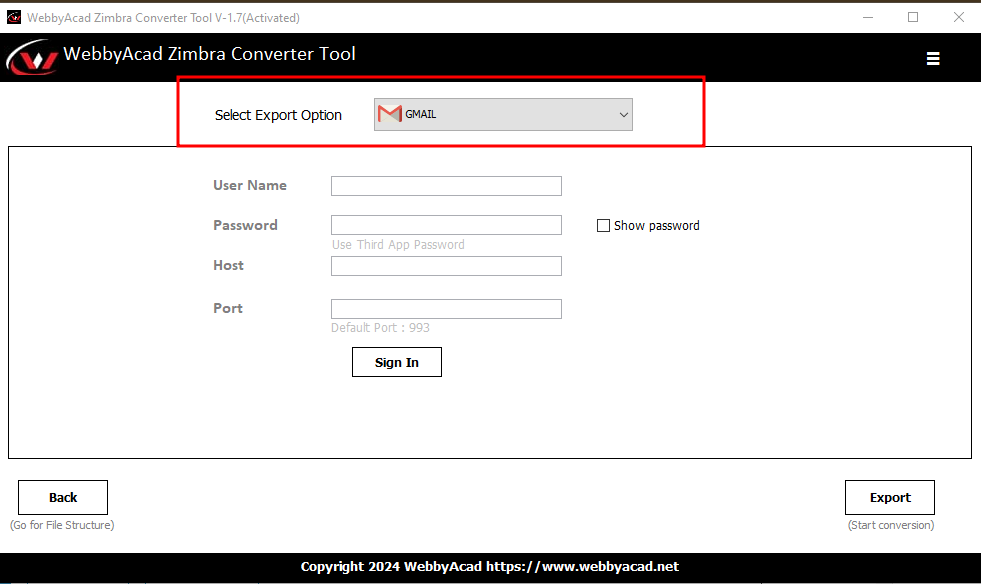
- Enter Gmail Credentials: Enter your Gmail account credentials.
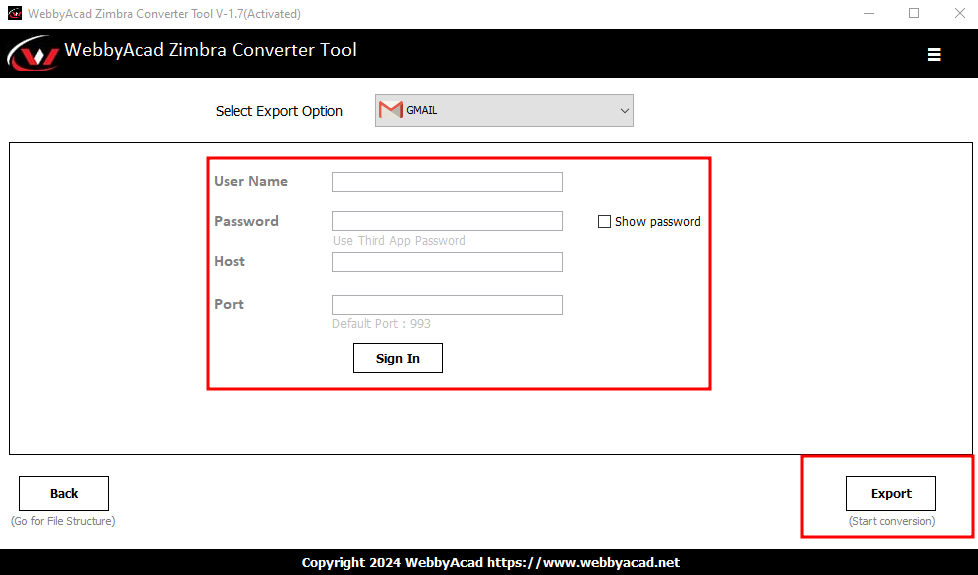
- Start Migration: Start the process of migrating.
- Verify Migration: After it finishes, check your Gmail account to see the moved emails.
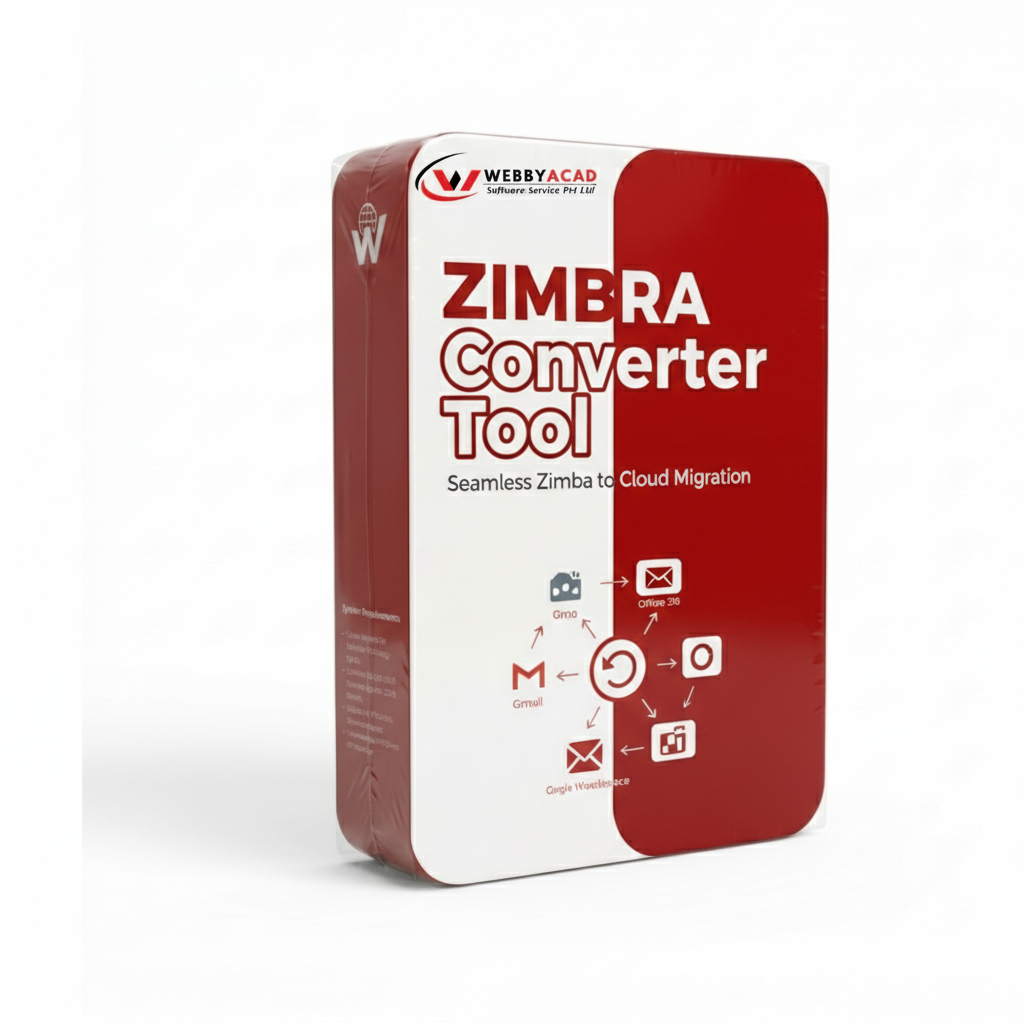
Zimbra Converter Tool
The ultimate solution for seamless Zimbra to Cloud migration. Convert your data with 100% accuracy.
- Instant Cloud Migration
- Supports Office 365
- Google Workspace Ready
- 100% Secure & Reliable
Method 2: Manual IMAP Sync (Best for Small Mailboxes)
If you only have a few emails, you can use the manual IMAP method. However, be aware of the limitations.
- Steps for Manual IMAP Setup:
- Enable IMAP in Gmail: Go to Settings > Forwarding and POP/IMAP and Enable IMAP.
- Configure Client: Add both your Zimbra and Gmail accounts to a desktop client like MS Outlook.
- Drag & Drop: Manually move folders from the Zimbra tree to the Gmail tree.
Warning: Manual migration often results in "time-out" errors with large attachments and does not migrate contacts or calendars effectively.
Comparison: Manual vs. WebbyAcad Software
| Feature | Manual IMAP | WebbyAcad Converter |
| Speed | Very Slow | High Speed |
| Data Safety | Risk of Data Loss | 100% Secure |
| Folder Structure | Often Lost | Preserved |
| Attachments | Limit of 25MB | No Size Limit |
| Bulk Migration | Not Possible | Supported |
Final Thoughts
Migrating your professional data shouldn’t be a gamble. While manual methods exist, they lack the reliability required for business-critical emails. For a guaranteed, error-free transition, use the WebbyAcad Zimbra to Gmail Converter.