 Alok Singh
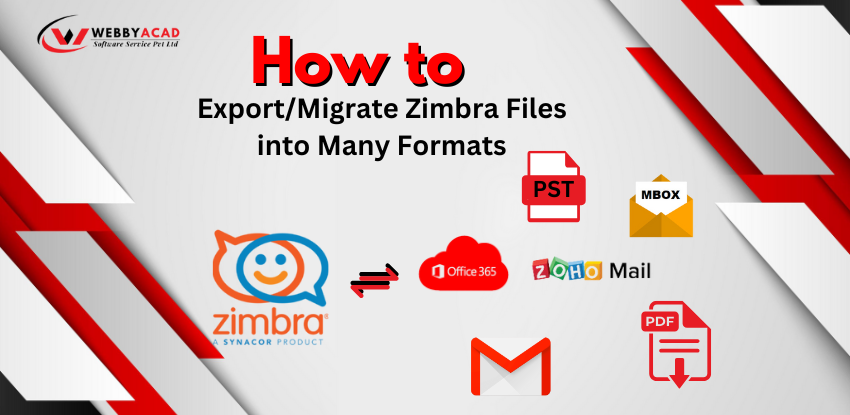
Zimbra is a powerful collaboration suite, but its proprietary TGZ format can be a “data prison” if you need to switch email clients or archive your mail. Whether you are migrating to Outlook, Gmail, or need a searchable PDF backup, knowing how to convert Zimbra files correctly is essential to avoid data corruption.
In this guide, we break down the best manual and automated ways to export Zimbra to multiple formats with 100% data integrity.
For small contact lists, the Zimbra Web Client export works well. However, for complete mailbox migration (emails, attachments, and folders), using a professional tool like the WebbyAcad Zimbra Converter is the only way to ensure metadata (To, Cc, Bcc, Date) remains intact across formats like PST, EML, and MBOX.
Zimbra Converter Tool
The ultimate solution for seamless Zimbra to Cloud migration. Convert your data with 100% accuracy.
- Instant Cloud Migration
- Supports Office 365
- Google Workspace Ready
- 100% Secure & Reliable
Why You Might Need to Export Zimbra Data
- Platform Migration: Moving from Zimbra to Microsoft 365 or Google Workspace.
- Legal Compliance: Converting emails to PDF for legal discovery or long-term archiving.
- Universal Access: Converting TGZ to MBOX or EML so you can open emails in Thunderbird or Apple Mail.
- Data Backup: Creating a local PST backup to safeguard against server failures.
Top 5 Formats for Zimbra Export & Their Uses
Understanding Migration and Exporting Zimbra to many formats
| Format | Best For… | Compatibility |
| PST | Migrating to Microsoft Outlook | Outlook 2021, 2019, 2016, Office 365 |
| MBOX | Open-source email clients | Thunderbird, Apple Mail, Eudora |
| Legal archives and sharing | Any PDF reader (Chrome, Adobe) | |
| EML | Individual email backup | Windows Mail, Outlook Express |
| CSV/vCard | Contact management | Excel, Google Contacts, Mobile phones |
Method 1: Exporting Contacts/Calendars via Zimbra Web Client (Free)
If you only need your address book or schedule, use the built-in export feature:
- Log into your Zimbra Web Client.
- Go to the Preferences tab (or Contacts for specific lists).
- Click Import/Export in the left sidebar.
- In the Export section, select Type (Account, Calendar, or Contacts).
- Choose your destination format (e.g., CSV) and click Export.
Limitations: This method does not support bulk email conversion to PST or MBOX and often fails with large file sizes.
Method 2: The Professional Solution (Best for Bulk Conversion)
For a complete, “hands-off” migration, the WebbyAcad Zimbra TGZ Converter is the industry standard. It eliminates the technical hurdles of CLI (Command Line) and the risks of manual exports.
Step-by-Step: Convert Zimbra to Any Format
- Download & Install: Get the WebbyAcad Zimbra Converter.
- Add TGZ Files: Launch the tool and browse for your Zimbra
.tgzfiles or folders. - Preview Data: View all emails and attachments inside the software before converting.
- Select Export Format: Choose from PST, MBOX, EML, PDF, HTML, or direct export to Office 365/Gmail.
- Convert: Select your destination path and hit Convert. Your data will be ready in seconds.
Key Benefits of Using WebbyAcad Software
- No File Size Limit: Easily handle 50GB+ TGZ archives.
- Folder Hierarchy: Your “Inbox,” “Sent,” and custom folders stay exactly as they were in Zimbra.
- Email Formatting: Keeps HTML images, hyperlinks, and attachments safe.
- Batch Conversion: Save hours by converting multiple Zimbra accounts at once.
Conclusion: Which Method Should You Choose?
If you are a technical user with a small amount of data, the manual Web Client export is a decent free starting point. However, for business-critical migrations where data loss is not an option, the WebbyAcad Zimbra Converter provides the speed and security you need.